
Table of Contents
Finding the best iptv app smart tv users can trust has become one of the most critical decisions for modern cord-cutters. Smart televisions dominate modern living rooms, with Samsung, LG, Sony, TCL, and Hisense offering brilliant 4K OLED and QLED displays. However, when it comes to live television streaming, Smart TV operating systems present a fragmented, confusing landscape.
Unlike open Android devices where you can install virtually any application with a single click, Smart TVs run closed proprietary software: Samsung uses Tizen OS, LG relies on webOS, while Sony, Philips, and select Hisense models run Android TV / Google TV. Because popular apps like TiviMate are engineered specifically for Android, owners of Samsung and LG televisions often struggle to find reliable native IPTV players that deliver smooth navigation, electronic program guides (EPG), and buffer-free playback.
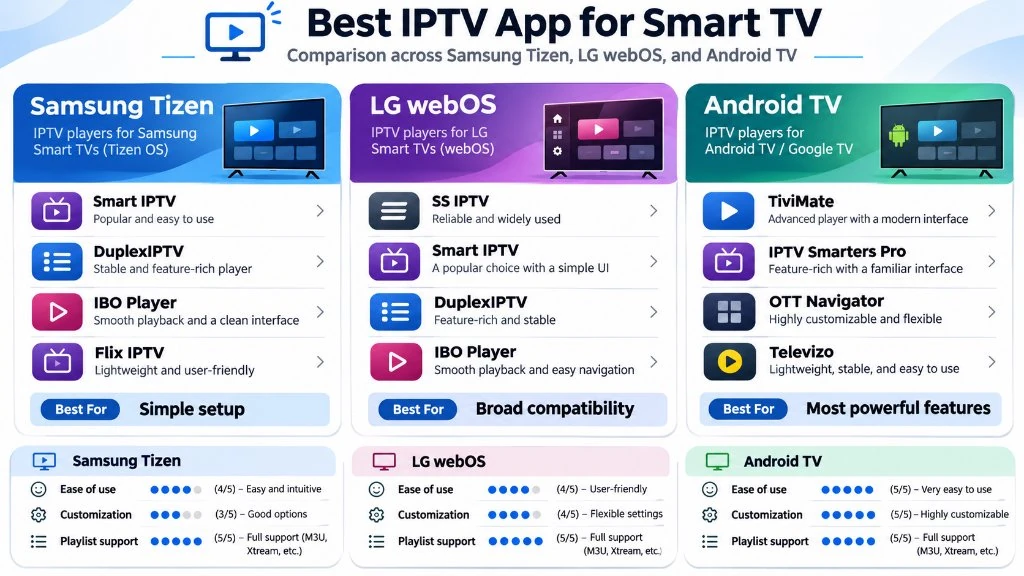
In this definitive guide from the TiviMate HD Tech Lab, we test and rank the top IPTV applications available for Smart TVs in 2026. We examine installation requirements, licensing costs, playback stability, and explain the ultimate hardware workaround that gives any Smart TV the full power of TiviMate.
Smart TV Operating Systems: Why One App Does Not Fit All
To choose the right streaming application, you must first recognize the operating system powering your television display. Media player compatibility is determined entirely by the underlying software ecosystem:
- Samsung Tizen OS: Samsung powers its displays with Tizen, a Linux-based operating system. The Samsung App Store strictly curates available software. Native Android
.apkfiles cannot be installed on Samsung TVs. You must choose players built natively for Tizen (such as IBO Player, IPTV Smarters Pro, or Smart IPTV) and activate them through external web portals using your TV’s MAC address. - LG webOS: Similar to Samsung, LG uses its proprietary webOS platform. While LG Content Store offers several capable streaming apps, memory management is notoriously strict. Heavy playlist manifests can cause unoptimized apps to crash if the TV’s internal RAM fills up.
- Android TV & Google TV (Sony, TCL, Hisense, Philips): Displays running Android TV or Google TV provide open access to the Google Play Store. These TVs can run TiviMate IPTV Player natively, delivering the absolute gold standard in television user interfaces, multi-view sports tracking, and rapid channel switching.
- Hisense VIDAA & Roku TV: Televisions running VIDAA OS or Roku OS are the most restrictive. They lack robust native IPTV applications altogether, requiring external streaming hardware to access private IPTV services.
Top 6 IPTV Apps for Smart TVs Ranked for 2026
Our technical engineering team deployed identical 25,000-channel playlists with 7-day XMLTV EPG data across Samsung Neo QLED, LG C3 OLED, and Sony Bravia Google TVs. We evaluated each app across interface speed, audio bitstream decoding, EPG population time, and stability during high-bitrate live 60 FPS sports broadcasts.
The comparison table below summarizes our comprehensive benchmark findings:
| IPTV Application | Best Operating System | License Cost | M3U / Xtream Support | EPG Grid Speed | Audio Passthrough | Overall Rating |
|---|---|---|---|---|---|---|
| TiviMate IPTV Player | Android TV / Google TV | Free / $33.49 Lifetime | Both (M3U & API) | Instant (< 1.5s) | Full (Dolby/DTS) | 9.9 / 10 |
| IBO Player | Samsung Tizen & LG webOS | 7-Day Free / ~$8.00 Lifetime | Both (M3U & API) | Fast (2.8s) | PCM / Stereo | 9.2 / 10 |
| IPTV Smarters Pro | Samsung, LG, Android TV | Free / In-App Upgrade | Both (M3U & API) | Moderate (4.2s) | Basic Stereo | 8.8 / 10 |
| Smart IPTV (SIPTV) | Samsung Tizen & LG webOS | 7-Day Free / €5.49 Lifetime | M3U Playlist Only | Moderate (5.1s) | Limited | 8.2 / 10 |
| Flix IPTV | Samsung, LG, Android TV | 7-Day Free / €7.99 Lifetime | Both (M3U & API) | Fast (3.1s) | Basic Stereo | 8.5 / 10 |
| Nanomid Player | Samsung Tizen & LG webOS | 14-Day Free / €9.99 Lifetime | Both (M3U & API) | Fast (2.9s) | Full Bitstream | 8.7 / 10 |
Detailed Reviews: The Best Smart TV IPTV Apps Evaluated
1. TiviMate IPTV Player: The Undisputed Champion (Android TV / Google TV)
If your Smart TV runs Android TV or Google TV (standard on Sony, TCL, Philips, and newer Hisense models), TiviMate IPTV Player is the single best application ever created for television streaming.
Developed by Armobsoft FZE, TiviMate delivers an authentic, premium cable and satellite experience. Its polished dark-mode interface, fluid navigation, and deep hardware optimization make it the benchmark against which all other players are judged:
- Lightning-fast TV guide that populates days of scheduling data without memory lag.
- Multi-View functionality allowing you to watch up to 4 live sports games simultaneously in smooth 60 FPS.
- Auto Frame Rate (AFR) matching to synchronize your TV’s refresh rate with the incoming broadcast signal.
- Highly customizable parental controls, channel group reordering, and external storage recording.
- Limitations: TiviMate is exclusively engineered for Android. It cannot be installed natively on Samsung Tizen or LG webOS without an external streaming stick like a FireStick or Google TV Streamer.
2. IBO Player: The Best Native App for Samsung & LG Smart TVs
For owners of Samsung Tizen or LG webOS displays who do not wish to plug in an external streaming device, IBO Player is our top recommended native solution. It is available directly through the official Samsung Smart Hub App Store and LG Content Store:
- Modern, responsive tile interface that navigates smoothly using the Samsung SolarCell or LG Magic Remote.
- Excellent hardware video decoding supporting 4K Ultra HD and 60 FPS H.264/HEVC video streams.
- Simple playlist management via the official IBO Player web portal using your TV’s MAC address and Device Key.
- Supports both standard M3U playlist URLs and high-speed Xtream Codes API connections.
- Pricing: Comes with a 7-day free trial, followed by a one-time lifetime license fee of approximately $8.00 per device.
3. IPTV Smarters Pro: The Universal Multi-Screen Standard
IPTV Smarters Pro remains one of the most widely deployed applications across all television platforms. Available on Samsung, LG, Android TV, iOS, and Windows, Smarters offers familiar multi-screen layouts:
- Comprehensive categorization separating Live TV, Movies, and TV Series into dedicated dashboard hubs.
- Direct Xtream Codes API login directly on your TV screen without needing an external computer.
- Built-in speed test and multi-screen split viewing options.
- Limitations: The interface on Samsung and LG TVs can feel slightly clunky compared to IBO Player, and loading massive playlists with over 50,000 channels can cause the app to slow down on older Smart TV processors.
4. Smart IPTV (SIPTV): The Veteran Workhorse
Smart IPTV (frequently abbreviated as SIPTV) was the original pioneer of Smart TV streaming. Recognizable by its classic red and white logo, SIPTV remains a staple on Samsung and LG TVs:
- Extremely lightweight code footprint that runs reliably even on older Smart TVs manufactured between 2017 and 2020.
- Simple, no-nonsense vertical channel list with instant channel number tuning via physical remote numpads.
- Limitations: SIPTV does not support native Xtream Codes API login; you must upload your M3U playlist URL through the SIPTV website. It lacks modern video-on-demand poster art and advanced audio track selection. Activation costs a one-time fee of €5.49 after a 7-day trial.
5. Flix IPTV: Sleek Design with Subtitle Mastery
Flix IPTV is a newer generation Smart TV application that has gained substantial market share on both Samsung Tizen and LG webOS:
- Beautiful, fluid user interface with customizable themes, background art, and smooth animations.
- Advanced subtitle controls allowing viewers to customize subtitle size, font color, and text background encoding.
- Supports hidden categories, sleep timers, and multiple playlist switching from a single screen.
- Pricing: 7-day free trial, followed by a one-time activation fee of €7.99 per MAC address.
6. Nanomid Player: Enterprise Acceleration & Security
Nanomid Player is engineered for high-performance streaming, featuring a proprietary internal rendering engine designed to reduce dropped video frames on low-powered Smart TV chips:
- Built-in hardware acceleration that optimizes high-bitrate 4K HDR playback on webOS and Tizen.
- Integrated VPN client support on select TV architectures, allowing encrypted streaming without router-level VPNs.
- QR-code mobile pairing for rapid playlist management from your smartphone.
- Pricing: Offers a 14-day free trial, with a lifetime activation pass priced at €9.99.
Step-by-Step Setup: Installing IPTV on Samsung & LG Smart TVs
Configuring an IPTV application on a Samsung or LG television follows a straightforward web portal activation model. Follow these steps to get connected in under five minutes:
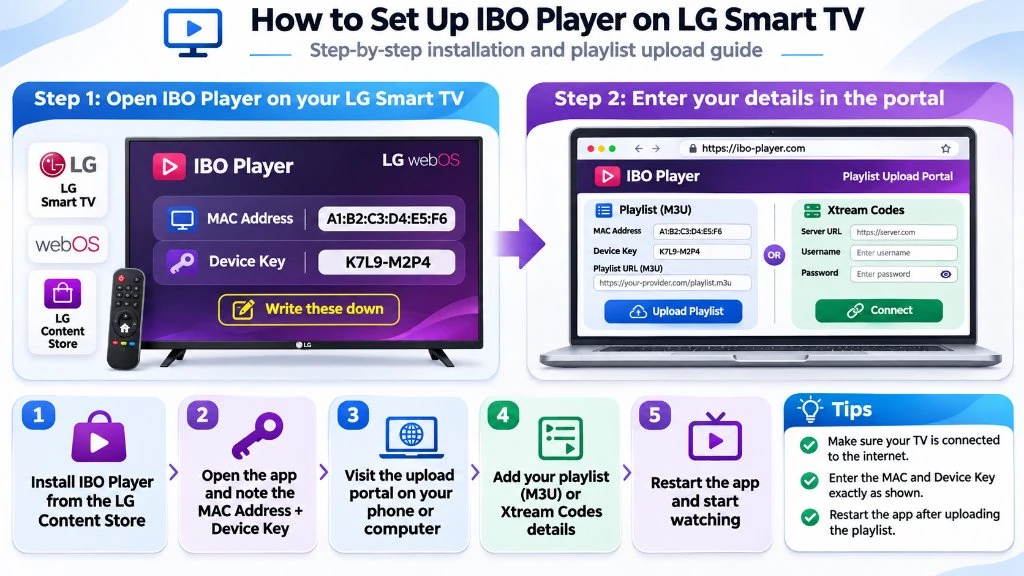
- Install the Application:
- On Samsung TVs: Press the Home button, navigate to Apps (Smart Hub), search for IBO Player (or your preferred player), and click Install.
- On LG TVs: Press the Home button, open the LG Content Store, search for IBO Player, and click Install.
- Retrieve Your Device Identifiers: Launch the installed app on your television. On the welcome screen, take note of two critical pieces of information:
- Device MAC Address (e.g.,
00:1A:79:B2:44:E1) - Device Key (a 6-digit security code generated by the app)
- Device MAC Address (e.g.,
- Open the Activation Portal on Your Phone or PC: Open a web browser on your smartphone or computer and navigate to the player’s official management portal (for example,
https://iboplayer.com/device/login). - Log in with Your TV Credentials: Enter the MAC address and Device Key displayed on your TV screen.
- Add Your Playlist Information:
- Select Add Playlist (Xtream Codes).
- Enter a Playlist Name (e.g., TiviMate HD).
- Enter your Server URL, Username, and Password provided in your TiviMate HD activation details.
- Reload the App on Your TV: Once saved on the portal, return to your television and click Reload / Refresh. Your complete channel lineup, categories, and EPG guide will populate immediately.
Why Native Smart TV Apps Buffer (And How to Fix It)
While native Smart TV applications are convenient, many cord-cutters notice that live streams occasionally buffer or stutter on their TV, even when their broadband connection is fast. Understanding the technical root cause allows you to eliminate buffering entirely:
- Limited TV Processor Power & RAM: Smart TV manufacturers prioritize display panel quality (contrast, color gamut, refresh rate) over raw computing power. Most Smart TVs contain modest dual-core or quad-core mobile processors with only 1.5 GB to 2 GB of RAM. When an IPTV playlist containing 25,000+ channels and 100,000+ VOD titles is loaded, the TV’s memory becomes saturated.
- Weak Internal Wi-Fi Antennas: Smart TV Wi-Fi cards are shielded behind large metal backplates and wall mounts, leading to signal attenuation and micro-packet loss during high-bitrate 60 FPS sports broadcasts.
- Aggressive Background Process Killing: To prevent the operating system from crashing, Tizen and webOS aggressively terminate background tasks, which can clear your stream buffer mid-broadcast.
How to Fix Buffering on Smart TVs:
- Connect via Wired Ethernet: Plug a Cat6 Ethernet cable directly from your router into your television’s LAN port to eliminate wireless interference.
- Trim Unwanted Channel Groups: In your IPTV portal settings, deselect international channel bouquets that you do not watch. Reducing your active playlist from 25,000 channels to 3,000 channels frees up substantial RAM.
- Switch Stream Format: In your player settings, toggle stream output from MPEG-TS to HLS (
.m3u8). HLS delivers segmented chunks that are significantly easier for Smart TV hardware to buffer smoothly.
The Pro Cord-Cutter Workaround: Unlock TiviMate on Any Smart TV
If you own a Samsung or LG television and want the unrivaled performance of TiviMate IPTV Player, there is a simple, highly affordable workaround used by streaming enthusiasts worldwide:
Plug an Amazon Fire TV Stick 4K Max or Google TV Streamer into your TV’s HDMI port.
For a one-time investment of $35 to $45, adding a dedicated streaming stick completely bypasses the limitations of Tizen and webOS. Check our Best IPTV Box & Streaming Devices guide for detailed hardware benchmarks:
- You get full, native access to TiviMate IPTV Player with multi-view 4-game tracking.
- Your streaming stick’s dedicated quad-core GPU handles video decoding, leaving your TV panel free to display pure 4K HDR imagery.
- You can control both the TV volume and your streaming stick using a single remote control via HDMI-CEC.
Power Your Smart TV with TiviMate HD Private Servers
Whether you stream through a native Smart TV app like IBO Player or pair your display with TiviMate on a FireStick, your viewing experience is only as good as the server delivering your video packets. Low-cost public servers overload during major events, resulting in dreaded spinning wheels right at kickoff.
At TiviMate HD, our streaming infrastructure is purpose-built for flawless Smart TV performance:
- 25,000+ Premium Live Channels: Enjoy complete US, UK, Canadian, and international cable packages in true 1080p and 4K resolution.
- True 60 FPS Live Sports: Never miss a goal or buzzer-beater across NFL Sunday Ticket, NBA League Pass, Premier League, UEFA Champions League, and UFC PPV.
- Dedicated 10 Gbps Anti-Freeze CDN Nodes: Our load-balanced server clusters automatically route streams around internet congestion, guaranteeing high uptime.
- Full Compatibility Across All Apps: Connect seamlessly via M3U playlist URL or high-speed Xtream Codes API on IBO Player, IPTV Smarters, TiviMate, and more.
Explore Flexible USA IPTV Subscription Passes
Instant digital activation via WhatsApp with zero automatic renewals and 24/7 priority customer support:
Frequently Asked Questions
Can I install TiviMate directly on a Samsung Smart TV?
No, TiviMate is developed exclusively for the Android operating system and is not compatible with Samsung’s Tizen OS. To use TiviMate on a Samsung television, connect an inexpensive streaming device such as an Amazon Fire TV Stick 4K Max or Chromecast with Google TV to your TV’s HDMI port.
What is the best native IPTV app for LG Smart TVs?
The best native application for LG webOS is IBO Player. It offers a polished modern interface, fast EPG loading, full 4K 60 FPS video support, and simple playlist activation through a web portal using your TV’s MAC address.
Are native Smart TV IPTV apps completely free?
Most reputable Smart TV IPTV players (including IBO Player, Smart IPTV, and Flix IPTV) offer a 7-day free trial. After the trial period, they require a small one-time lifetime activation fee ranging between $6 and $10 per device. Note that this fee pays for the media player software license only; you must pair it with a private service like TiviMate HD to access live channels.
Why do channels take several seconds to change on my Smart TV?
Slow channel changing (channel zapping latency) is usually caused by heavy playlist files or slow DNS resolution on your television. In your TV’s network settings, change your DNS server to Cloudflare (1.1.1.1) or Google (8.8.8.8) to accelerate stream connection handshakes.
How do I update my playlist after adding new channels on Smart TV?
If your IPTV provider updates their channel lineup, open your player on the television, navigate to Settings or Playlists, and select Reload Playlist or Refresh EPG. If using IBO Player or Smart IPTV, you can also log into the web portal and click Save to push the latest stream manifest to your TV.