
An IPTV internet speed test measures real-world download bandwidth, loaded latency (ping), jitter stability, and packet loss between your streaming device and local network gateways to verify whether your connection can sustain uninterrupted HD or 4K live television.
Most frustrated viewers who complain about buffering make one classic diagnostic mistake: they pull out a flagship smartphone standing three feet from the living-room router, run a quick browser speedtest, celebrate a 400 Mbps score, and assume their television has the same pipeline. In reality, your streaming box or Smart TV hidden behind a drywall cabinet often receives a fraction of that throughput, suffers destructive packet jitter, or gets throttled by your Internet Service Provider (ISP) after 8:00 PM.
In this 2026 diagnostic guide, you will learn how to run a device-level wifi speed test on your actual television hardware, how to read Ookla latency and jitter thresholds for 4K 60fps sports, why speedtest net scores can mislead cord-cutters, and how pairing clean home routing with TiviMate HD‘s anti-freeze CDN eliminates freezing for good.
⚡ Quick Answer: Exact Speed Test Thresholds for Smooth IPTV (2026)
- Minimum vs. Recommended Speed (4K UHD): While HEVC-compressed 4K streams consume roughly 12 to 16 Mbps, run an internet speed test looking for at least 25 Mbps bare minimum and 35 to 40+ Mbps per active 4K television to absorb high-motion sports bitrate spikes safely.
- Full HD (1080p 60fps) Requirement: A rock-solid 15 to 20 Mbps measured directly on the TV box delivers crystal-clear live broadcasts.
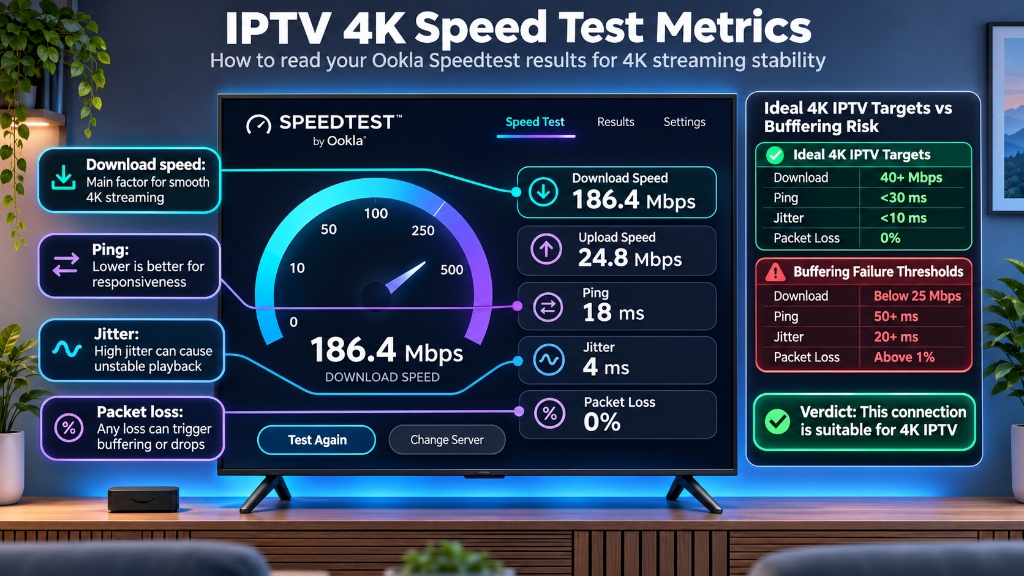
- The Hidden Killers (Ping, Jitter & Packet Loss): Raw internet speed means very little if your connection drops frames. Demand idle ping under 30 to 50 ms, jitter under 10 ms, and 0% packet loss.
- Household Benchmark: The Federal Communications Commission (FCC) defines baseline fixed broadband at 100 Mbps download / 20 Mbps upload, giving a multi-screen household comfortable breathing room when properly distributed over 5 GHz Wi-Fi or Ethernet.
Key Facts Box: 4K IPTV Network & Ookla Speedtest Thresholds
| Ookla Speedtest Metric | Ideal Target (Zero Buffering) | Acceptable Borderline | Failure / Freeze Zone | Primary Effect on Live IPTV |
|---|---|---|---|---|
| Download Speed (4K UHD) | 40+ Mbps on streaming box | 25 to 35 Mbps | Under 25 Mbps | Resolution drops, loading circles, constant stalls |
| Download Speed (1080p FHD) | 20+ Mbps on streaming box | 12 to 19 Mbps | Under 10 Mbps | Blurry macro-blocks during camera movement |
| Idle & Loaded Ping | Under 30 ms | 30 to 50 ms | Over 50 to 80 ms | Sluggish channel zapping and delayed EPG refresh |
| Jitter (Latency Variance) | Under 10 ms | 10 to 30 ms | Over 30 ms | Packet pacing underruns, audio/video desync |
| Packet Loss | 0.0% | 0.1% to 0.5% | Over 1.0% | Green artifacts, frame freezes, dropped streams |
| Codec Bandwidth Load | 12 to 16 Mbps (HEVC/H.265) | 25 to 35 Mbps (Legacy H.264) | Uncompressed excess | Determines how many TVs can stream concurrently |
Why Peak Download Speed Alone Lies About Your IPTV Connection
Typing speed test internet into any browser returns one big number in bold font: your peak burst download capacity across multiple simultaneous TCP connections to a nearby testing server. While useful for measuring how fast a giant console game downloads, burst Mbps tells less than half the story for live television packets.
Unlike downloading a static software update, streaming live 60fps sports or watching a movie on your best IPTV provider operates in strict real time. Media players pull small two-to-six-second video segments continuously. Three hidden network bottlenecks ruin playback even on gigabit fiber plans:
1. Jitter Disrupts Packet Pacing
Jitter measures how inconsistently your ping fluctuates from millisecond to millisecond. Suppose a speed check shows an average ping of 22 ms, yet packets bounce wildly between 12 ms and 78 ms every two seconds because someone upstairs launched an upload backup or wireless signals collide. Live players depend on steady timing; once jitter climbs past 30 ms, your player experiences buffer underruns and skips frames regardless of whether you pay for a 500 Mbps internet plan.
2. Bufferbloat (Loaded Latency Spikes)
Standard tests used to highlight only idle latency before traffic started flowing. Modern Ookla diagnostics now display Loaded Ping (latency measured under full download and upload saturation). If idle ping sits at 14 ms yet rockets to 350 ms during the download phase of a speedtest, your router suffers from severe bufferbloat. The instant another household member starts a cloud backup or joins a Zoom meeting, live TV stalls.
3. The 1% Packet Loss Rule
Web browsers simply re-request lost TCP chunks without anyone noticing. Real-time UDP and tight-window HTTP Live Streaming (HLS) feeds cannot wait forever for missing frames. Just 1% packet loss behind noisy walls introduces distorted green pixel blocks, audio pops, and sudden stream disconnects.
Step-by-Step: How to Run a True WiFi Speed Test on Your TV Device
Never rely on laptop or mobile speed numbers captured in another corner of your home. Every wall, metal TV chassis, refrigerator, and Bluetooth soundbar between your router and HDMI port alters wireless strength dramatically. Follow the exact method below for your television platform.
Method 1: Amazon Fire TV Stick & Android TV (Analiti App or Silk)
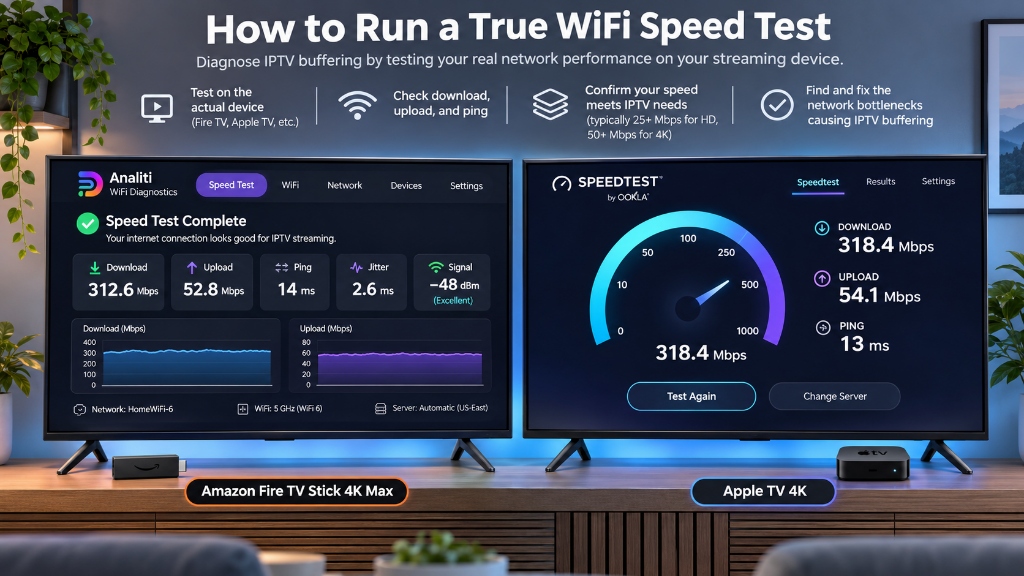
- Open the Amazon Appstore or Google Play Store on your TV screen and search for Analiti Wi-Fi Tester & Analyzer (free, lightweight, built specifically for Android TV remotes).
- Alternatively, open the Amazon Silk Browser, navigate directly to speedtest.net, and select Go.
- Wait for the complete diagnostic cycle to finish. Record your Download Mbps, Ping ms, Jitter ms, and Wi-Fi Signal Strength (dBm) sitting behind the television.
- Repeat the check once at 2:00 PM and again at 9:00 PM during prime viewing hours to spot ISP evening congestion.
Method 2: Apple TV 4K (Native Ookla Speedtest App)
- Launch the tvOS App Store on your Apple TV home screen.
- Search for Speedtest by Ookla and install the official app directly onto the box.
- Run the benchmark and expand the detailed telemetry panel to inspect both Idle and Loaded latency scores alongside packet loss percentage.
Method 3: Samsung, LG & Smart TVs (Built-In Browser Check)
Smart TV wireless cards sit mounted directly behind thick panel shielding and typically deliver slower throughput than external HDMI streaming boxes. Open the Smart TV’s native web browser, visit speedtest.net or fast.com (to test real streaming-shaped CDN paths), and inspect whether throughput holds cleanly above 25 Mbps.
Check Fast.com immediately after running Ookla Speedtest. Because Fast.com routes through real video-streaming CDN endpoints whereas certain ISPs whitelist speedtest.net benchmark nodes, a huge gap between the two scores (for example, 300 Mbps on Ookla vs. 18 Mbps on Fast.com) is concrete proof your ISP is actively throttling video streams!
Real Bandwidth Math: Calculating Household IPTV Headroom
Most American households run multiple connected electronics concurrently. Relying on bare minimum calculations invites evening stutter whenever family members scroll social media feeds or game online while you watch Sunday football.
| Connected Household Scenario | Codec Used | Simultaneous Video Streams | Real-World Download Needed | FCC 100/20 Mbps Alignment |
|---|---|---|---|---|
| Single Studio Viewer (1080p FHD) | HEVC / H.265 | 1 Live Channel + Phone Browsing | 15 to 20 Mbps | Exceeds with 80+ Mbps margin |
| Single Living-Room 4K Sports Screen | HEVC / H.265 | 1 Native 4K 60fps Feed | 35 to 40+ Mbps | Comfortable headroom |
| Two Concurrent 4K TVs + Remote Work | HEVC / H.265 | 2 Live 4K Feeds + Video Calls | 75 to 90 Mbps | Matches FCC 100 Mbps baseline |
| Legacy H.264 4K Stream (Unoptimized) | Legacy H.264 | 1 High-Bitrate 4K Feed | 45 to 60 Mbps | Heavy router saturation risk |
| Busy Family (3 Screens + Gaming) | Mixed HEVC | 3 Streams + Online Console Gaming | 120+ Mbps (QoS Enabled) | Upgrade router / fiber recommended |
Notice why codec engineering separates top-tier providers from overloaded resellers. When you stream through TiviMate HD‘s HEVC (H.265) pipeline, a razor-sharp 4K broadcast compresses cleanly into 12 to 16 Mbps compared to legacy 25 to 35 Mbps H.264 encoding, cutting your Wi-Fi load roughly in half without sacrificing a single pixel of stadium turf clarity.
Why Your Internet Speed Looks Fast Yet IPTV Still Buffers (And How to Fix It)
Suppose you run a test internet speed directly on your Fire TV Stick or Apple TV and observe a rock-solid 90 Mbps download score with 18 ms ping, yet live television freezes every ten minutes. Network bottlenecks fall into four solvable categories:
1. Your Streaming Stick Is Stuck on the 2.4 GHz Wi-Fi Band
Dual-band routers broadcast both a 2.4 GHz network (long range, tiny bandwidth, heavily crowded by microwaves, baby monitors, and neighboring apartments) and a 5 GHz or 6 GHz network (dramatically faster throughput, lower jitter, minimal interference). Even inside the same home, switching your TV from 2.4 GHz to 5 GHz commonly triples actual streaming stability overnight.
2. Selective Evening ISP Throttling
Between 7:30 PM and 11:30 PM, major residential ISPs dynamically inspect continuous port traffic and depress sustained unencrypted media streams to preserve backbone capacity. Follow our complete step-by-step troubleshooting playbook in Fix IPTV Buffering & ISP Throttling on FireStick to test a lightweight WireGuard VPN client and determine within 60 seconds whether traffic shaping caused your freezes.
3. Single-Server Reseller Saturation (Not Your Internet!)
If your local Ookla score clears 50 Mbps with zero packet loss and your VPN makes zero difference, your internet speed is completely innocent: the budget IPTV seller’s server is overloaded! Low-tier sellers cram too many viewers onto one network port, causing universal collapses whenever championship soccer, NBA playoffs, or UFC cards begin.
4. Unoptimized Player Buffer Settings
In lightweight players like TiviMate, leaving buffer sizing set to “None” leaves zero safety cushion if a Wi-Fi packet fluctuates for half a second. Increasing TiviMate’s playback buffer slightly to Small or Normal alongside Hardware Video Decoding absorbs momentary wireless dips seamlessly. Need visual setup guidance? Follow How to Setup IPTV on TiviMate FireStick and our sports optimization playbook in Watch NFL, NBA & UFC IPTV Without Buffering.
If your Fire TV Stick sits across two thick interior walls from your router and your wifi speed test consistently shows jitter above 20 ms or packet loss over 0.5%, connect a low-cost USB-to-Ethernet adapter (or plug an Ethernet Cat6 cable directly into an Apple TV 4K, Nvidia Shield, or Smart TV). Hardwired Ethernet locks jitter near 1 to 2 ms and drops packet loss to zero.
5. Router Quality of Service (QoS) and Private DNS Calibration
When several family devices compete for finite upload and download queues inside the same household, a single cloud photo backup or console software patch can spike loaded ping across every television in the house. Enabling Smart Queue Management (SQM) or Media Priority QoS inside your router dashboard reserves guaranteed real-time bandwidth packets specifically for your Fire TV Stick, Apple TV, or Smart TV MAC address so secondary background traffic never starves your live broadcast.
Paired with QoS, switching your router or streaming device away from slow default ISP DNS servers to fast public resolvers (Cloudflare 1.1.1.1 / 1.0.0.1 or Google Public DNS 8.8.8.8 / 8.8.4.4) speeds up CDN edge server domain handshakes noticeably. Faster DNS lookups shave precious milliseconds off initial channel loading whenever you flip through 60fps sports streams.
| Symptom After Running Speedtest | Most Likely Technical Cause | Immediate 2-Minute Diagnostic Fix |
|---|---|---|
| Speedtest 200+ Mbps, Fast.com < 20 Mbps | Residential ISP throttling video streaming ports | Activate lightweight WireGuard VPN client directly on FireStick or router |
| Loaded ping jumps > 150 ms under load | Router Bufferbloat when household uploads run | Turn on SQM / QoS device prioritization or cap background cloud sync |
| Jitter > 25 ms behind thick drywall | Congested 2.4 GHz wireless spectrum | Force connection onto dedicated 5 GHz SSID or connect Gigabit Ethernet |
| Zero packet loss, buffers strictly on PPV | Overloaded single-server budget reseller source | Switch to TiviMate HD multi-node anti-freeze CDN infrastructure |
Recommended Streaming Hardware & Router Setup After Your Speed Test
Passing a speedtest check on your router only delivers part of the equation if an underpowered television stick drops frames or your gateway prioritizes background cloud backups over live video. Pairing clean bandwidth with capable hardware locks in consistent 4K 60fps performance:
| Streaming Gear or Network Node | Key Connectivity & Chipset Specs | Ideal Player Pairing | Why It Maximizes Measured Throughput |
|---|---|---|---|
| Apple TV 4K (3rd Gen, 128GB) | A15 Bionic chip, Wi-Fi 6 + built-in Gigabit Ethernet | UHF / TiviMax | Zero wireless contention and silent thermal stability for multi-hour sports |
| Amazon Fire TV Stick 4K Max | Quad-core CPU, Wi-Fi 6E + optional USB Ethernet | TiviMate | High-value 6 GHz wireless throughput that dodges crowded neighbor channels |
| Nvidia Shield TV Pro | Tegra X1+ processor, Gigabit Ethernet, AI Upscaling, dual USB 3.0 | TiviMate | Direct wired port plus hardware upscaling that sharpens 720p/1080p feeds |
| Dual/Tri-Band Wi-Fi 6/6E Router | Dedicated 5 GHz/6 GHz SSID, SQM/QoS + 1.1.1.1 / 8.8.8.8 DNS | All Household Devices | Prevents latency spikes when roommates upload files or run downloads |
Split your router into distinct 2.4 GHz (smart plugs and sensors) and 5 GHz/6 GHz (TV streaming boxes) network names, switch on Smart Queue Management (SQM/QoS), and point DNS to Cloudflare (1.1.1.1) or Google (8.8.8.8) to trim DNS lookup delays during fast channel changes.
Upgrade to Anti-Freeze CDN Servers Built for Any Broadband Speed
Testing your home internet connection removes guesswork, but stable viewing still requires upstream servers capable of saturating your pipe consistently when millions tune in simultaneously.
TiviMate HD routes all 25,000+ live channels and 130,000+ VOD titles through redundant North American and global CDN edge clusters using adaptive anti-freeze load balancing and high-efficiency H.265 60fps feeds. Every pass ships with instant automated activation in under 2 minutes, 7-day money-back protection, and 24/7 WhatsApp and email engineer assistance.
| TiviMate HD Subscription Pass | Best Post-Diagnostic Fit | Plan Rate & Protection | Direct Conversion Link |
|---|---|---|---|
| 1-Month USA IPTV Pass | Verify home Wi-Fi or wired stability across live weekend sports | $11.99 total (7-day refund policy) | Start 1-Month Pass |
| 3-Months USA IPTV Pass | Quarter-season commitment covering playoffs without monthly renewals | Prepaid quarterly bundle rate | Select 3-Months Pass |
| 6-Months USA IPTV Pass | Half-year household coverage across smart TVs and mobile screens | Discounted 6-month prepaid tier | Select 6-Months Pass |
| 1-Year USA IPTV Premium Pass | Lock in year-round 4K uptime once speed diagnostics clear | $69.99 / yr ($5.83/mo) + 24/7 support | Get 1-Year Premium Pass |
| 2-Years USA IPTV Ultimate Pass | Maximum multi-year savings for zero-maintenance living rooms | Extended 24-month ultimate bundle | Unlock 2-Years Ultimate |
Prefer comparing all multi-screen options side by side before activating? Visit the full TiviMate HD Storefront for complete pass specifications.
Frequently Asked Questions
What is a good internet speed test result for 4K IPTV streaming?
A good internet speed test result for single-stream 4K IPTV shows at least 25 Mbps minimum download speed, with 35 to 40+ Mbps recommended for smooth headroom during live sports bitrate spikes. Equally critical are idle ping under 30 to 50 ms, jitter below 10 ms, and 0% packet loss.
Why does Ookla Speedtest say 300 Mbps while my IPTV still buffers?
Many consumers test internet speed on a phone standing beside the router while their streaming box sits behind a wall on a congested 2.4 GHz band. Additionally, residential ISPs prioritize speedtest net servers while quietly throttling continuous evening video ports, and high jitter above 30 ms breaks live streams regardless of peak Mbps.
How do I run a WiFi speed test directly on an Amazon FireStick or Apple TV?
On Fire TV Stick or Android TV, download the free Analiti app or open speedtest.net inside the Amazon Silk browser. On Apple TV 4K, install the official Ookla Speedtest app directly from the tvOS App Store for instant Ethernet or WiFi telemetry.
How much bandwidth does HEVC H.265 4K IPTV actually consume?
Modern IPTV providers encoding in High-Efficiency Video Coding (HEVC/H.265) cut required bandwidth roughly in half compared to legacy H.264, streaming crisp 4K UHD video at 12 to 16 Mbps rather than 25 to 35 Mbps.
Is WiFi fast enough for IPTV or do I need a wired Ethernet cable?
Clean 5 GHz or Wi-Fi 6 signals with zero wall obstructions easily support 4K IPTV. However, if your streaming device exhibits jitter above 20 ms or any packet loss during your speedtest, switching to a wired Gigabit Ethernet cable eliminates wireless interference immediately.
Related Streaming Optimization Guides
Explore these complementary network and player configuration resources on TiviMate HD:
- Fix IPTV Buffering & ISP Throttling on FireStick: Diagnose evening carrier shaping with WireGuard VPN routing and DNS optimization.
- Watch NFL, NBA & UFC IPTV Without Buffering: Complete router QoS, band-steering, and 60fps sports preparation guide.
- How to Setup IPTV on TiviMate & FireStick: Step-by-step buffer size, hardware decoder, and Xtream Codes API setup instructions.
- Best IPTV in 2026: Providers & Buyer Guide: Evaluate multi-node CDN infrastructure and test server uptime safely before subscribing annually.
Stop Buffering and Stream 4K Live Sports in Peace
Once your local Wi-Fi speeds clear 35+ Mbps, connect to anti-freeze multi-node server infrastructure built to handle peak sports traffic with zero dropped frames.
Alex Mercer
Lead Streaming & Network Engineer at TiviMate HD Tech Lab
Alex specializes in real-time video delivery, ISP routing congestion, loaded bufferbloat diagnostics, and low-latency HEVC/H.265 compression for multi-screen cord-cutting setups.